Lab 004: Jenkins Folders
Requirements
The DevOps team of xFusionCorp Industries is planning to create a number of Jenkins jobs for different tasks. To easily manage the jobs within Jenkins UI they decided to create different Folders for all Jenkins jobs based on usage/nature of these jobs. Based on the requirements shared below please perform the below mentioned task:
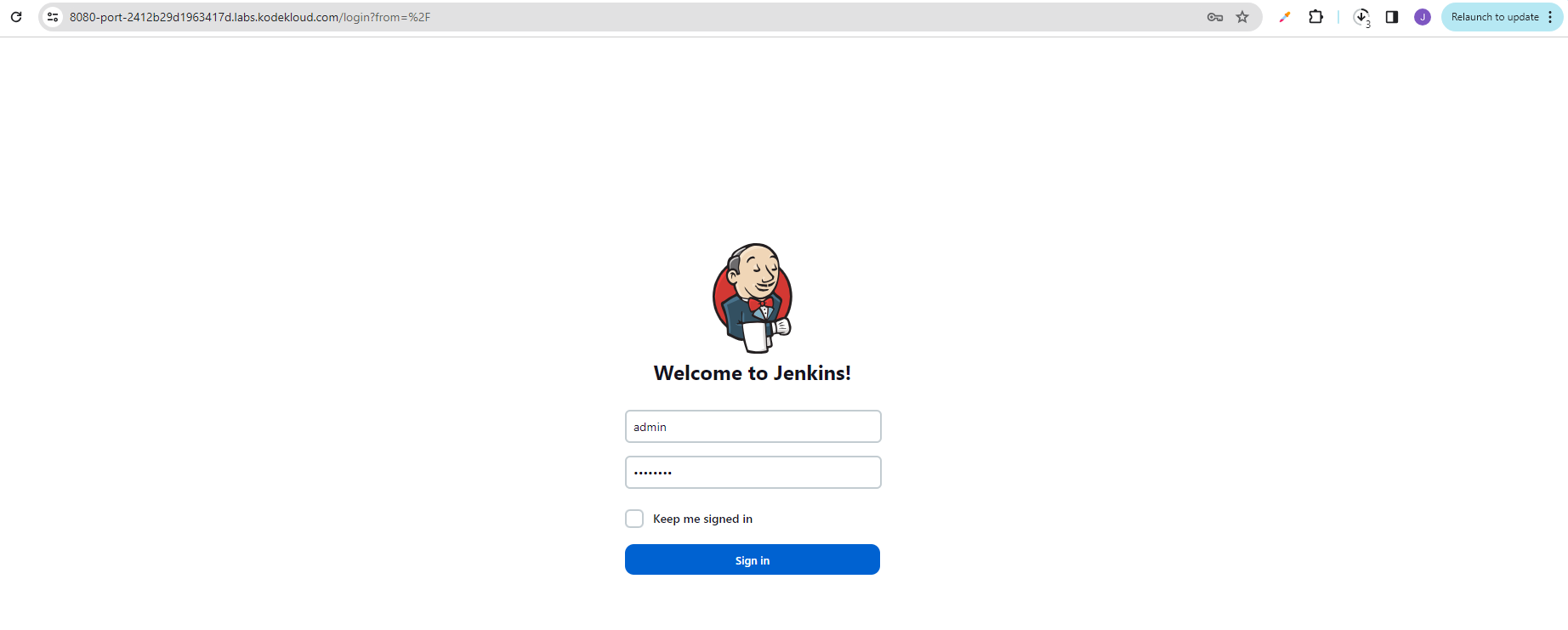
Click on the Jenkins button on the top bar to access the Jenkins UI. Login using username admin and password Adm!n321.
-
There are already two jobs httpd-php and services.
-
Create a new folder called Apache under Jenkins UI.
-
Move the above mentioned two jobs under Apache folder.
Note:
-
You might need to install some plugins and restart Jenkins service. So, we recommend clicking on Restart Jenkins when installation is complete and no jobs are running on plugin installation/update page i.e update centre. Also, Jenkins UI sometimes gets stuck when Jenkins service restarts in the back end. In this case, please make sure to refresh the UI page.
-
For these kind of scenarios requiring changes to be done in a web UI, please take screenshots so that you can share it with us for review in case your task is marked incomplete. You may also consider using a screen recording software such as loom.com to record and share your work.
The requirement text is preserved as-is. The steps below document one complete workflow to install the Folders plugin and organize existing jobs.
Prerequisites
- Jenkins server is installed and running.
- Admin user credentials are available (admin / Adm!n321).
- Two existing jobs (httpd-php and services) are present.
Steps
Click the Jenkins button and in the new tab, sign-in to Jenkins.

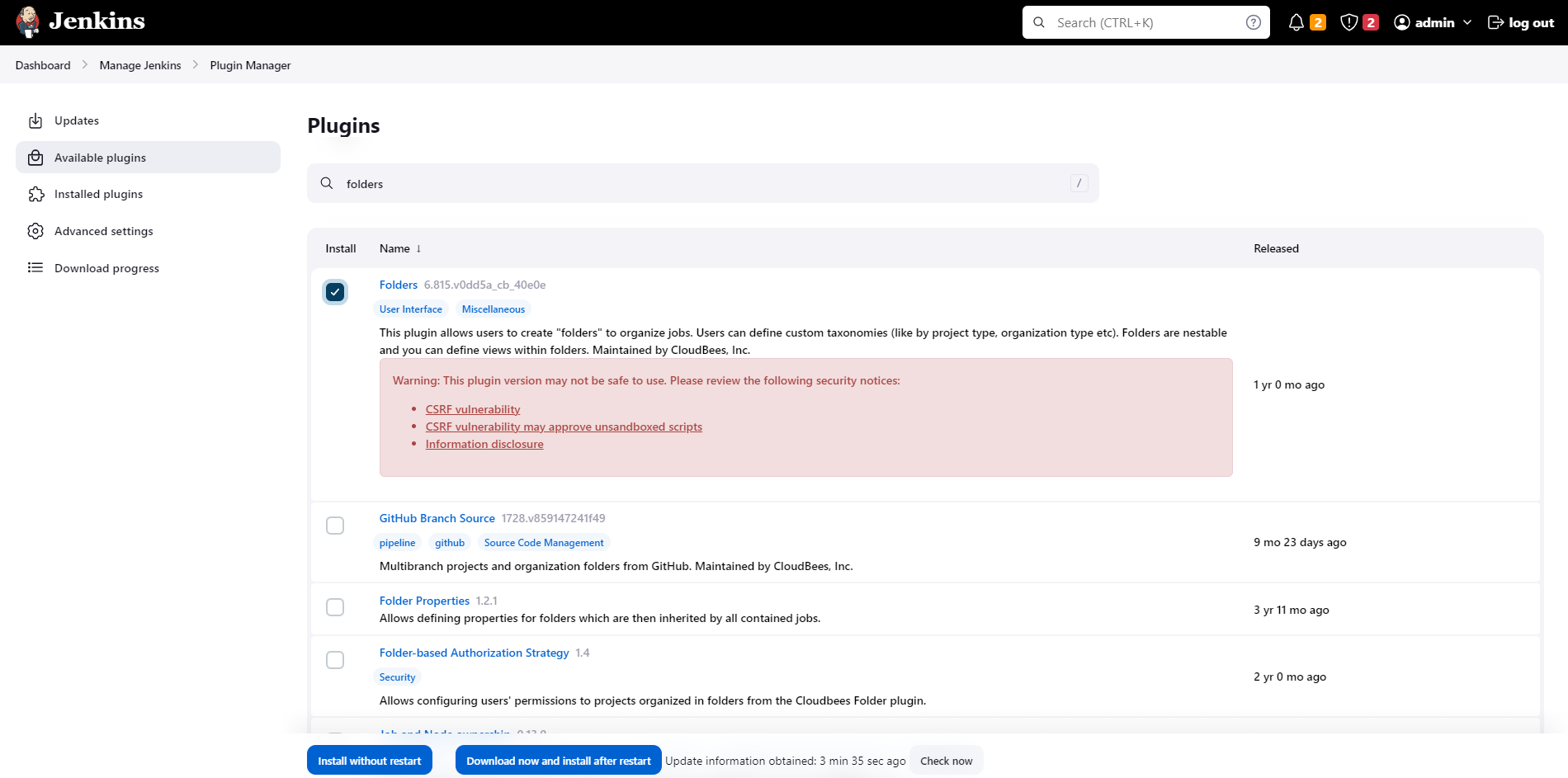
Go to Manage Jenkins > Manage Plugins
Install Folders plugin if its not yet installed. Make sure to click Download now and install after restart. > Restart Jenkins when installation is complete
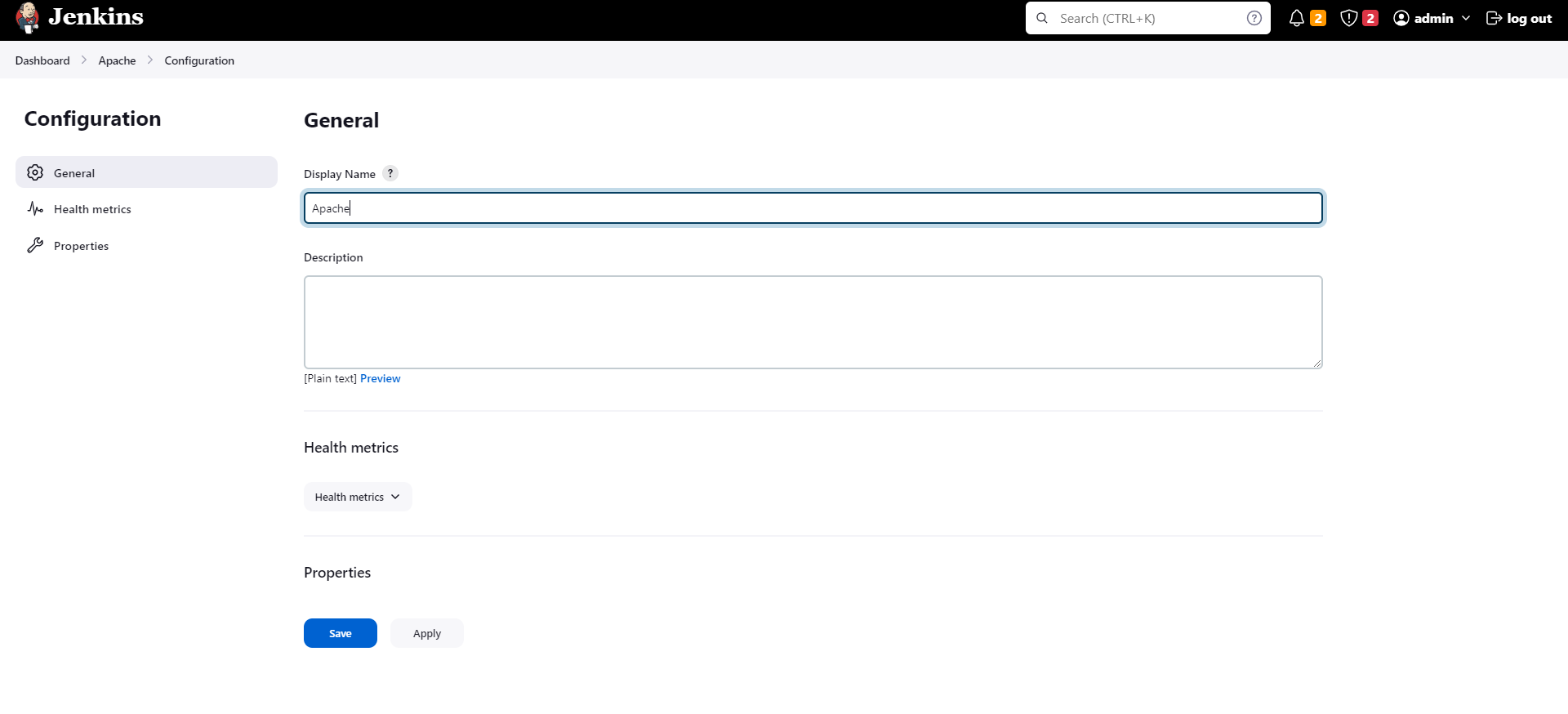
After restart, login. Then click New Item > Enter folder name > Folder
Use the same name for the Display name.
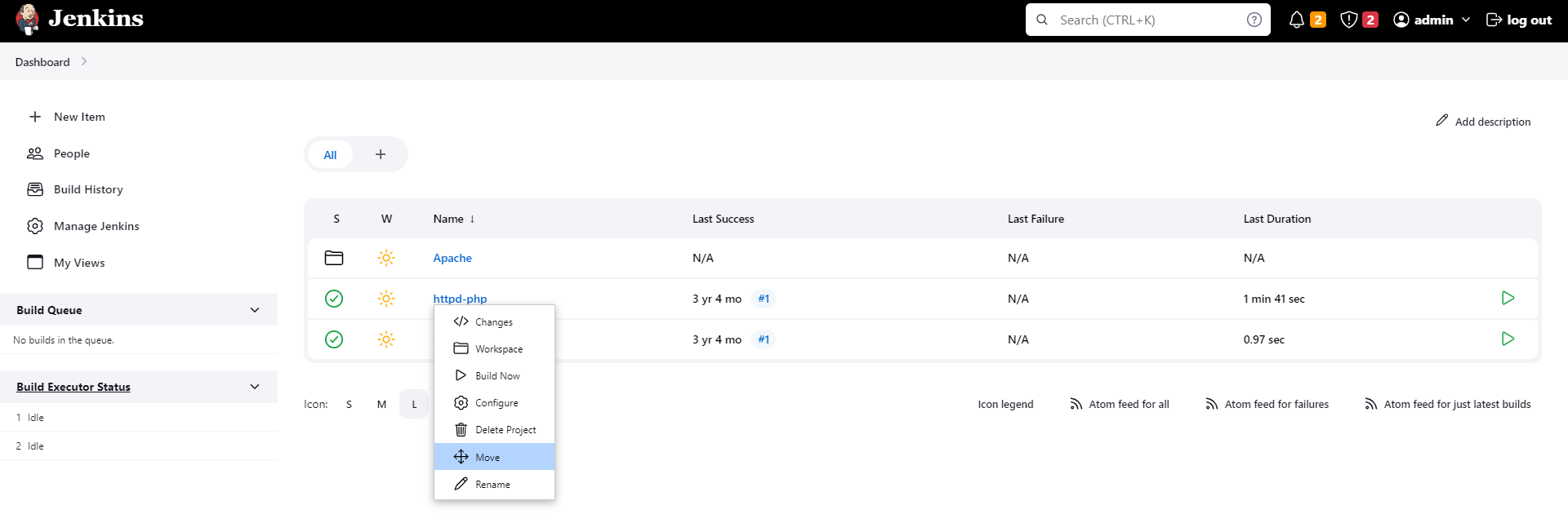
Right-click on one of the jobs > Move > Select the new folder. Do the same for both job.
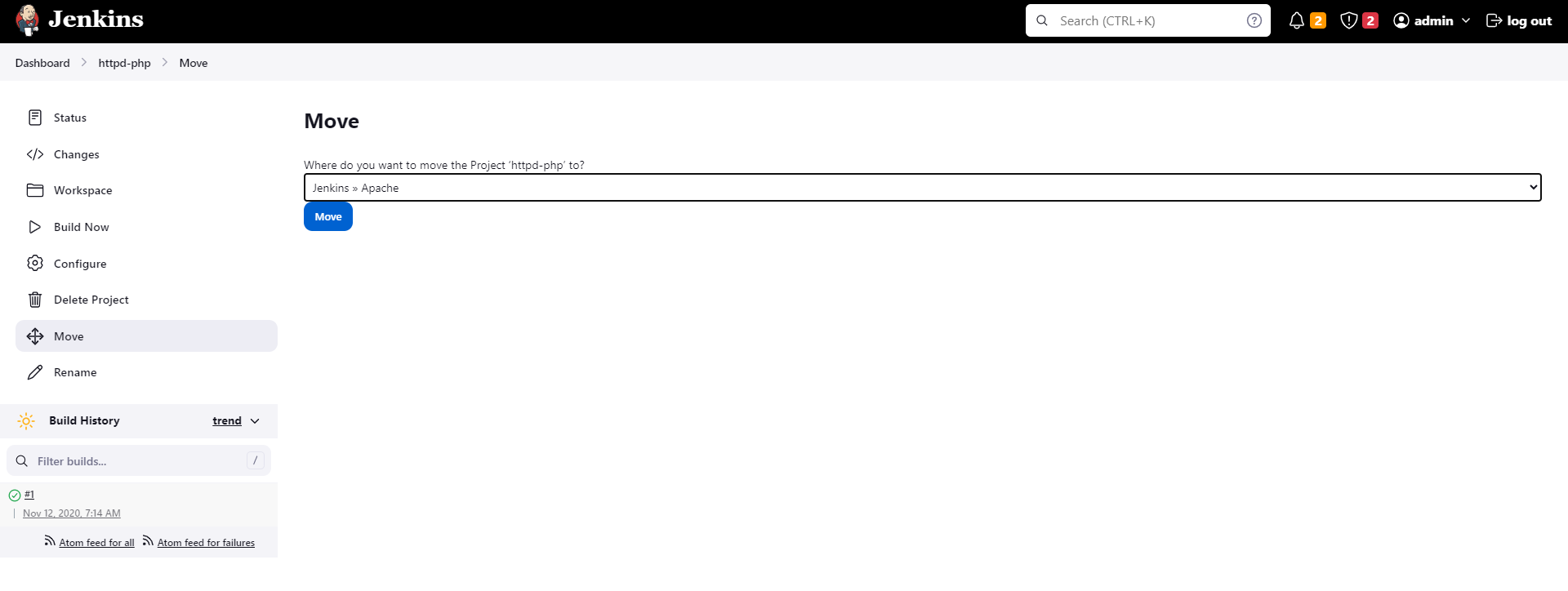
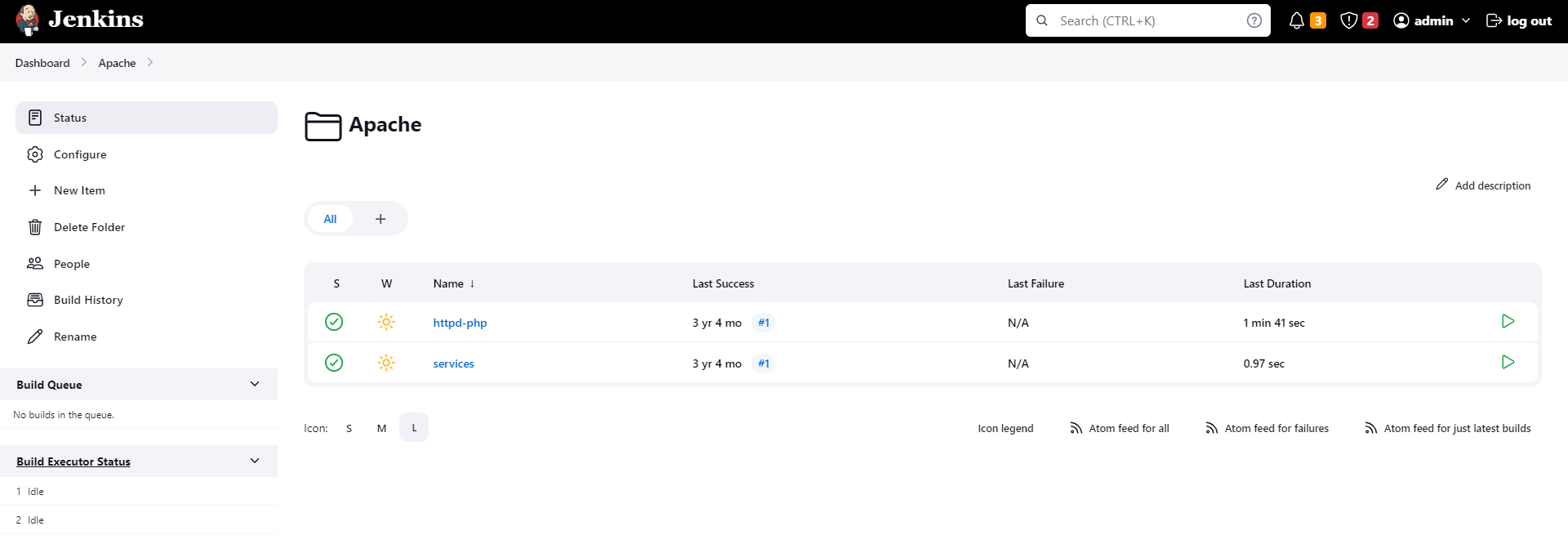
Verify that both jobs are inside the folder.
Verification
- Confirm Folders plugin is installed under Manage Jenkins > Manage Plugins.
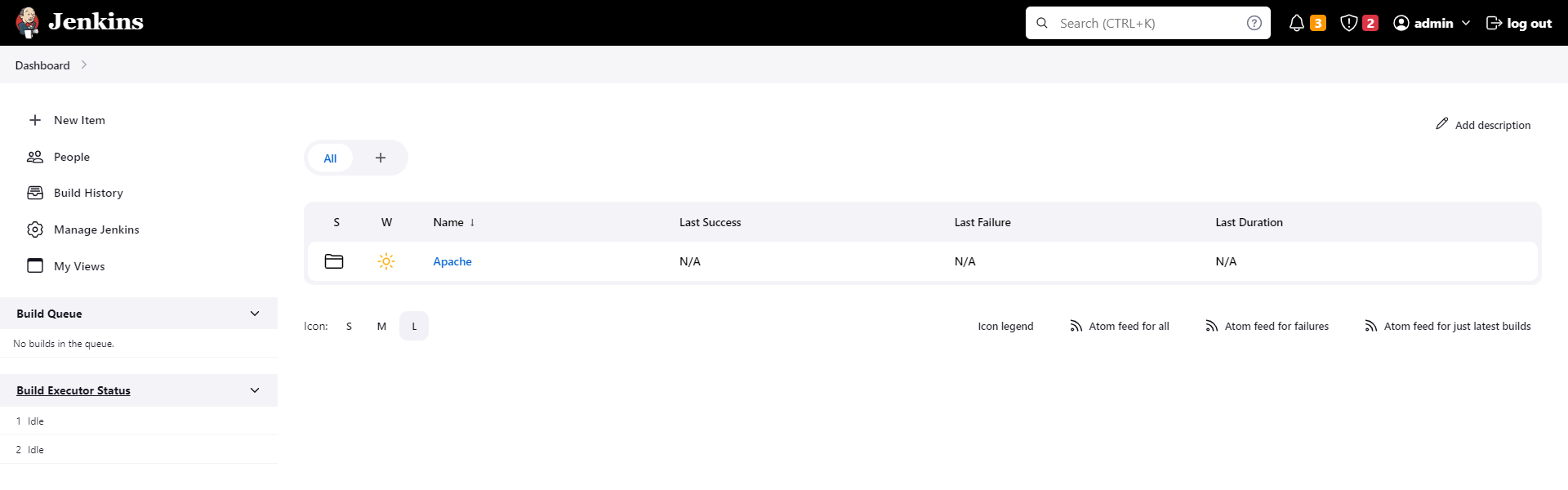
- Confirm Apache folder exists in Jenkins UI.
- Confirm both jobs (httpd-php and services) are inside the Apache folder.
- Confirm no jobs remain at the root Jenkins level.