Lab 001: Jenkins Installation
Requirements
The DevOps team of xFusionCorp Industries is planning to setup some CI/CD pipelines. After several meetings they have decided to use Jenkins server. So, we need to setup a Jenkins Server as soon as possible. Please complete the task as per requirements mentioned below:
-
Install jenkins on jenkins server using yum utility only, and start its service. You might face timeout issue while starting the Jenkins service, please refer this link for help.
-
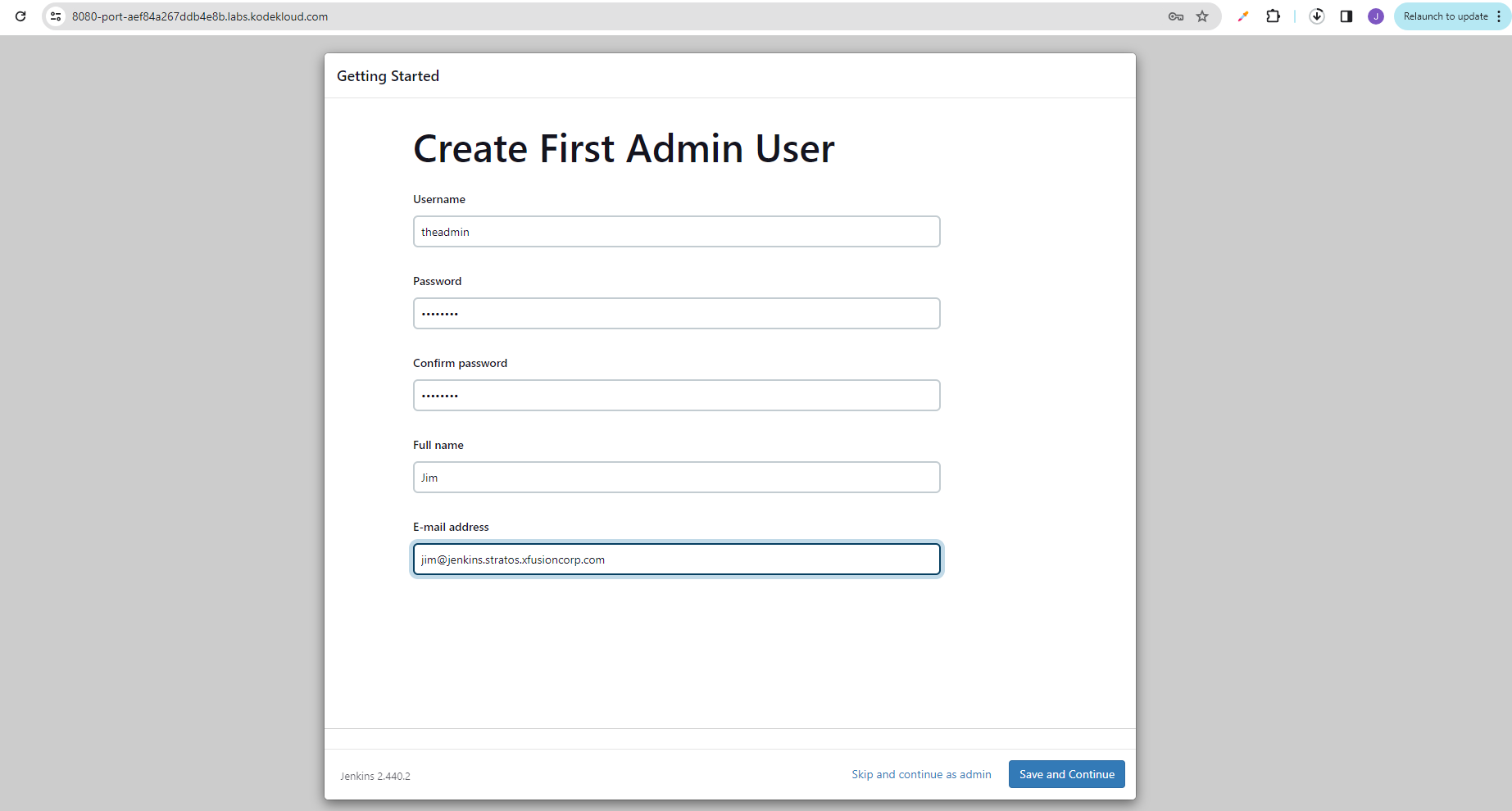
Jenkin's admin user name should be theadmin, password should be Adm!n321, full name should be Kareem and email should be
<kareem@jenkins.stratos.xfusioncorp.com>.
Note:
-
For this task, ssh into the jenkins server using user root and password S3curePass from jump host.
-
After installing the Jenkins server, please click on the Jenkins button on the top bar to access Jenkins UI and follow the on-screen instructions to create an admin user.
This page preserves the original requirement text and documents one complete Jenkins installation and initial configuration workflow.
Prerequisites
- SSH access to the Jenkins server (172.16.238.19) as root with password S3curePass.
- Internet access to download Jenkins packages and plugins.
- Java and package manager (yum or apt) available on the target system.
Steps
For the server credentials, check out the Project Nautilus documentation.
Since it was mentioned to use a different login, follow that instead.
# Jenkins Server for CI/CD
sshpass -p 'S3curePass' ssh -o StrictHostKeyChecking=no  root@172.16.238.19
Install Jenkins. Note that you may get a CentOS or Ubuntu OS for your session.
For CentOS:
yum update -y

sudo yum install epel-release java-17-openjdk wget -y

sudo wget -O /etc/yum.repos.d/jenkins.repo https://pkg.jenkins.io/redhat-stable/jenkins.repo --no-check-certificate
sudo rpm --import http://pkg.jenkins.io/redhat-stable/jenkins.io-2023.key

sudo yum update -y
sudo yum install jenkins -y
For Ubuntu:
apt update
apt search openjdk
apt install openjdk-8-dbg
java -version

# add the key
wget -q -O - https://pkg.jenkins.io/debian/jenkins.io.key | sudo apt-key add -
sh -c 'echo deb https://pkg.jenkins.io/debian binary/ > \
    /etc/apt/sources.list.d/jenkins.list'

apt install apt-transport-https
apt update
apt install jenkins
Start Jenkins.
sudo systemctl status jenkins
sudo systemctl start jenkins && sudo systemctl status jenkins
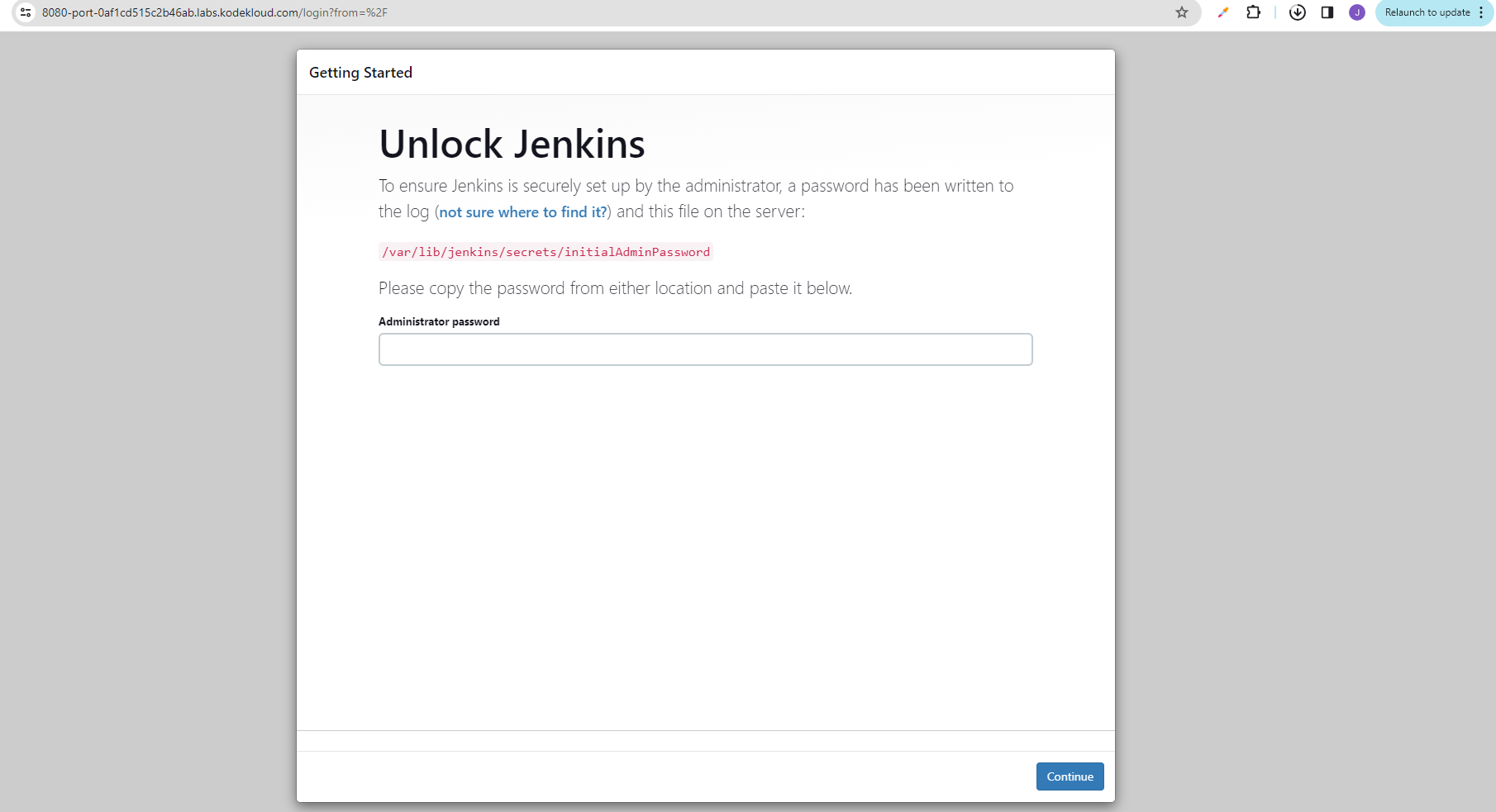
Get the initial admin password.
cat /var/lib/jenkins/secrets/initialAdminPassword
Click the Jenkins button at the top right to open the Jenkins page in a new tab.

Enter the copied admin password.
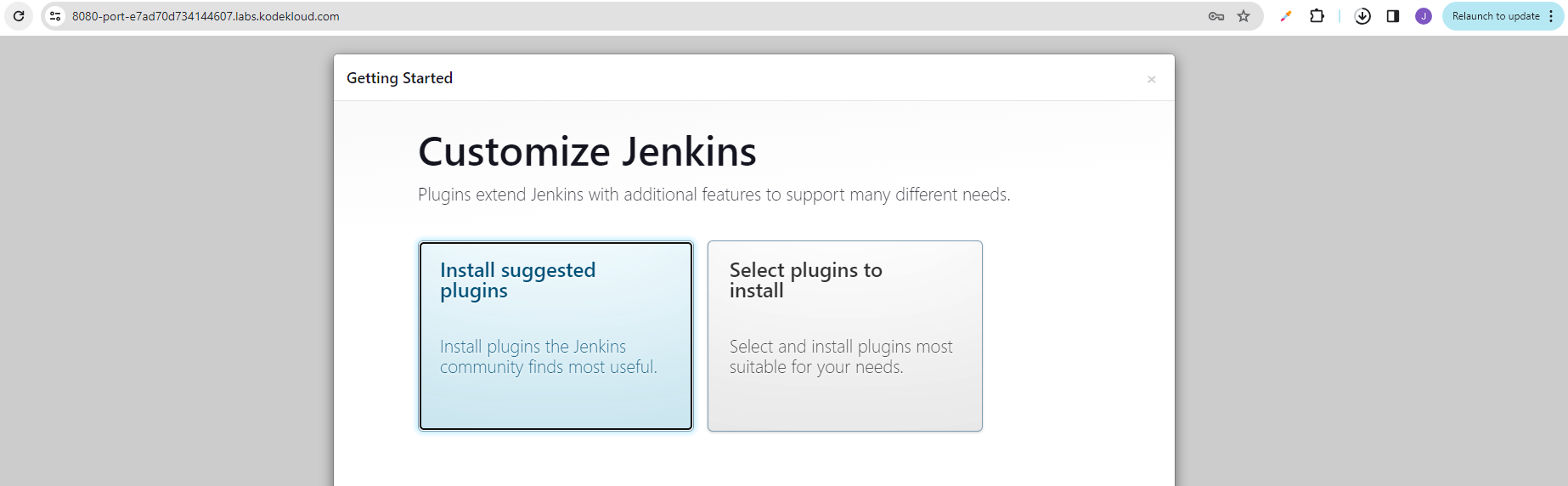
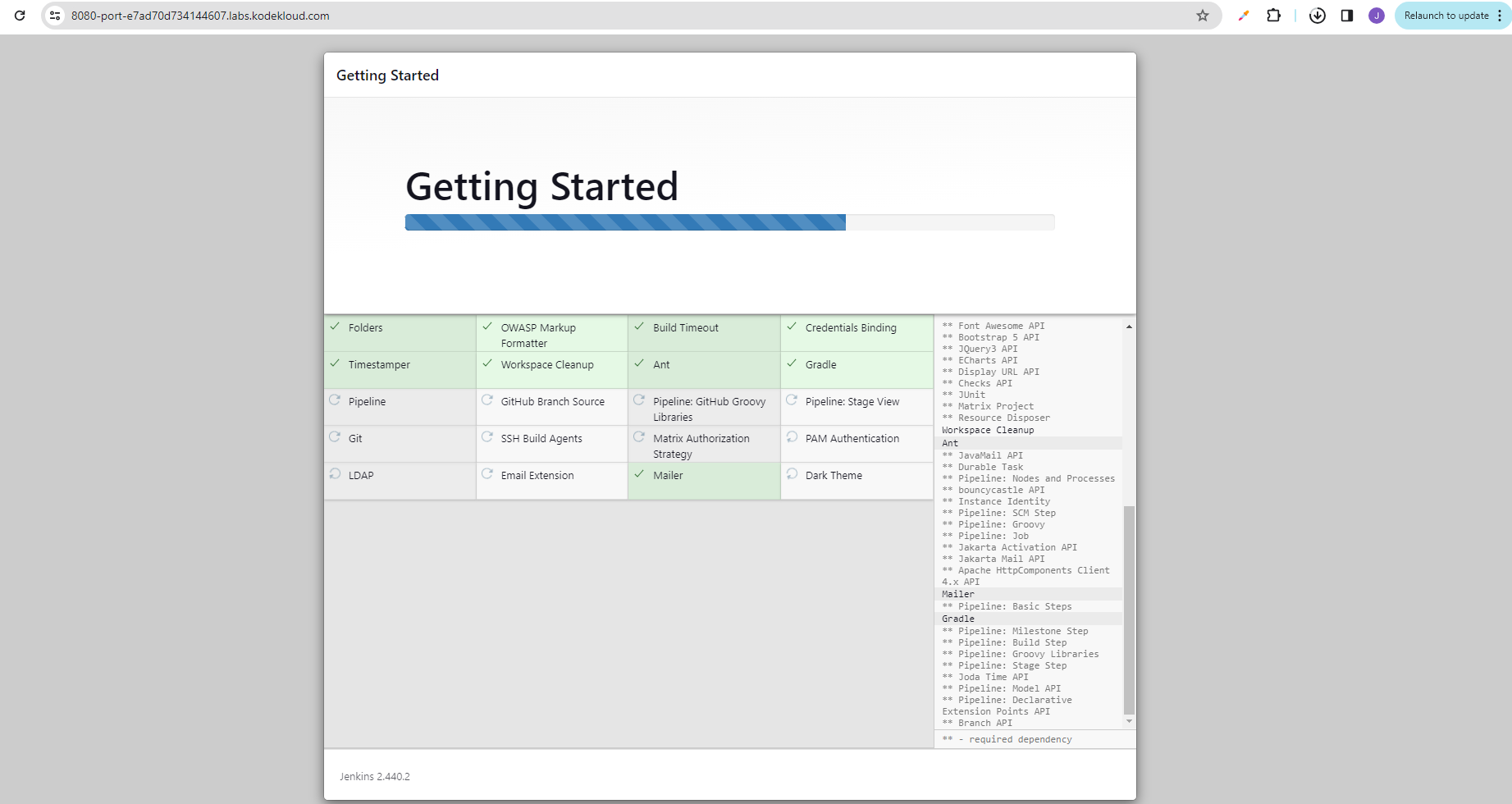
If the some of the plugins fail to install, hit retry.
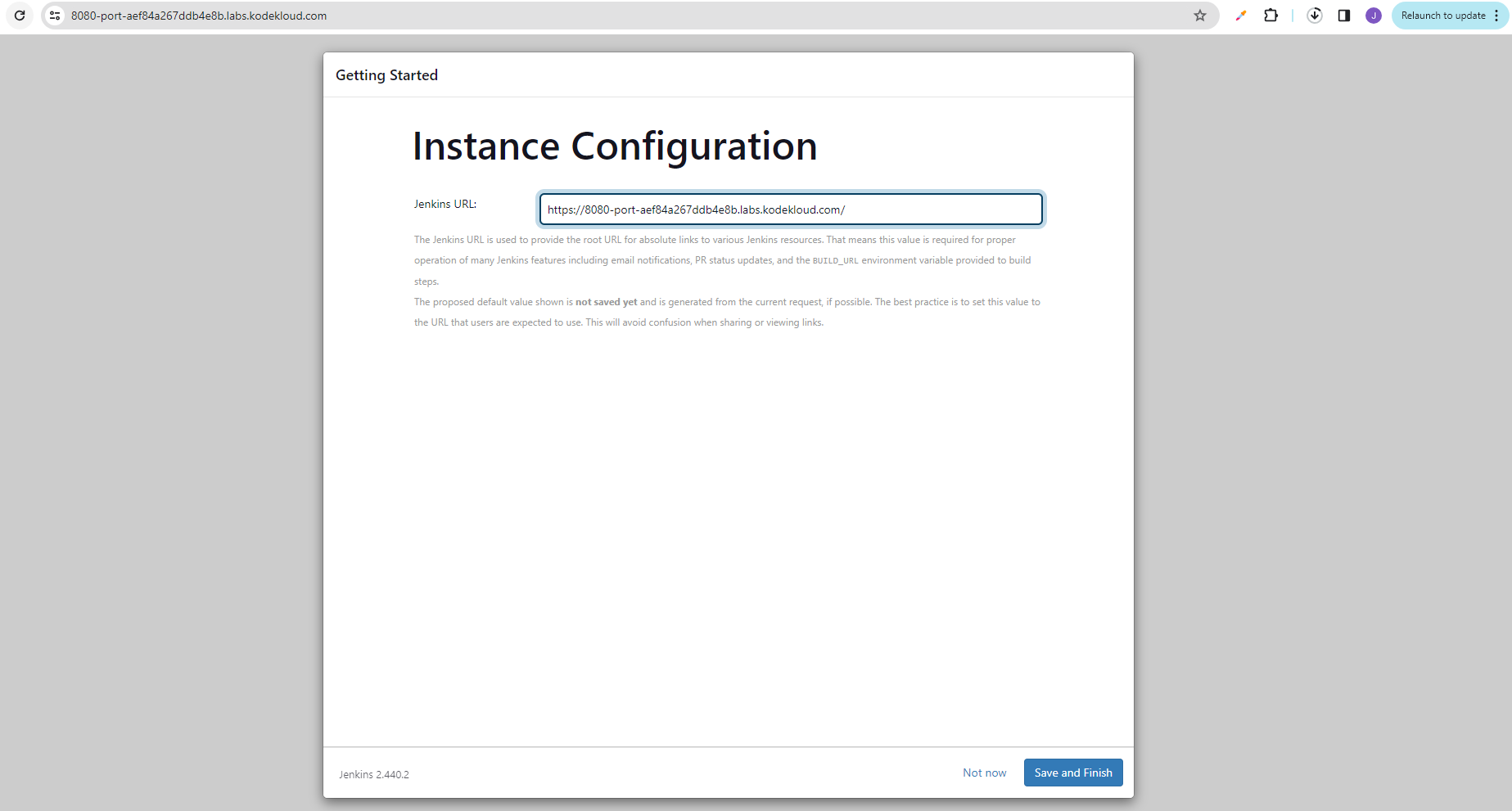
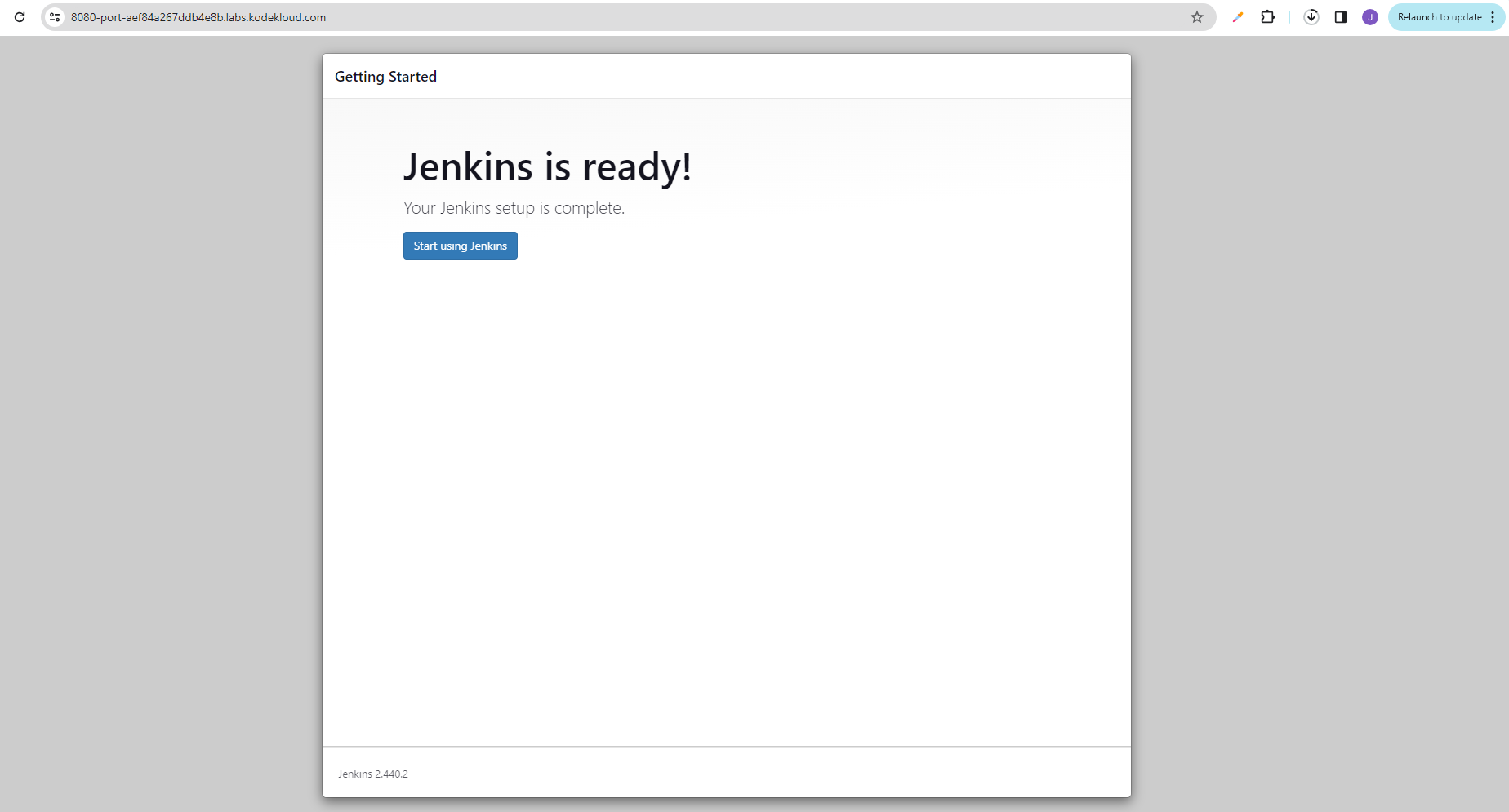
Provide the admin user according to the instructions.
Verification
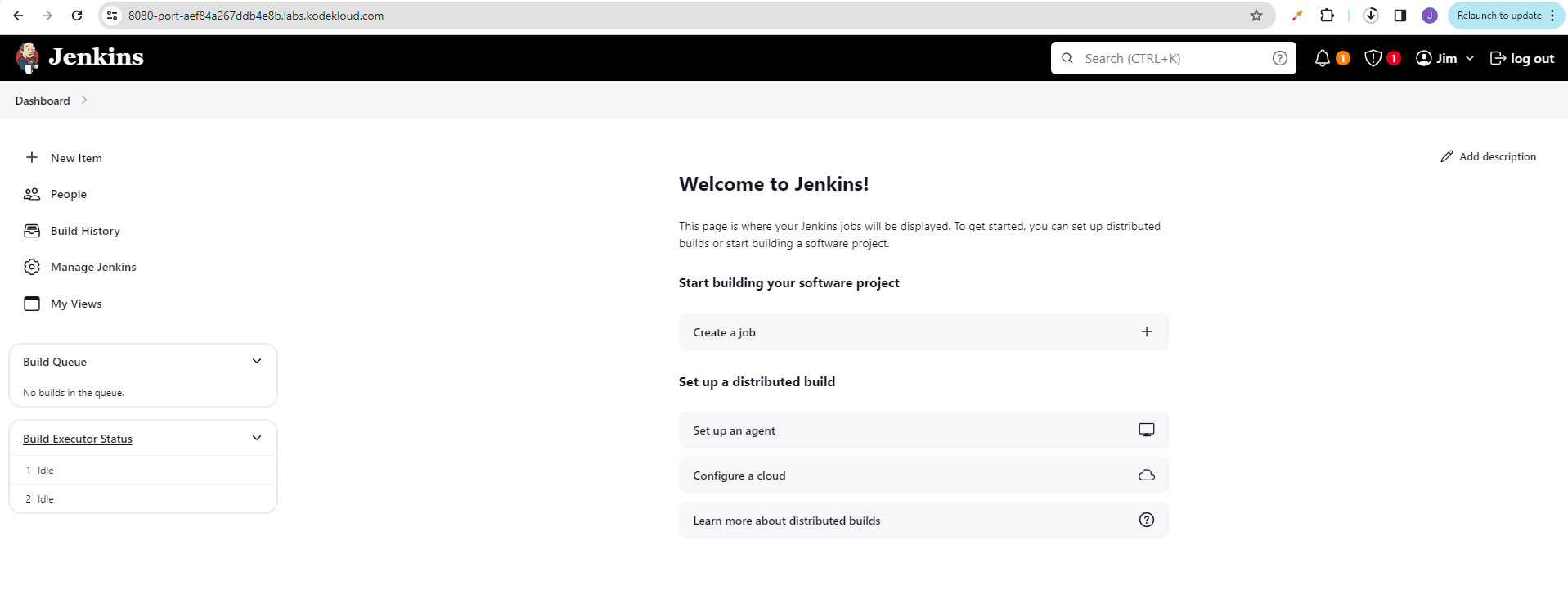
- Confirm Jenkins is running and accessible at the Jenkins UI.
- Confirm admin user
theadminexists with full admin access. - Confirm the initial plugin installation completed successfully.
- Confirm
systemctl status jenkinsreturnsactive (running).